 Xtrable
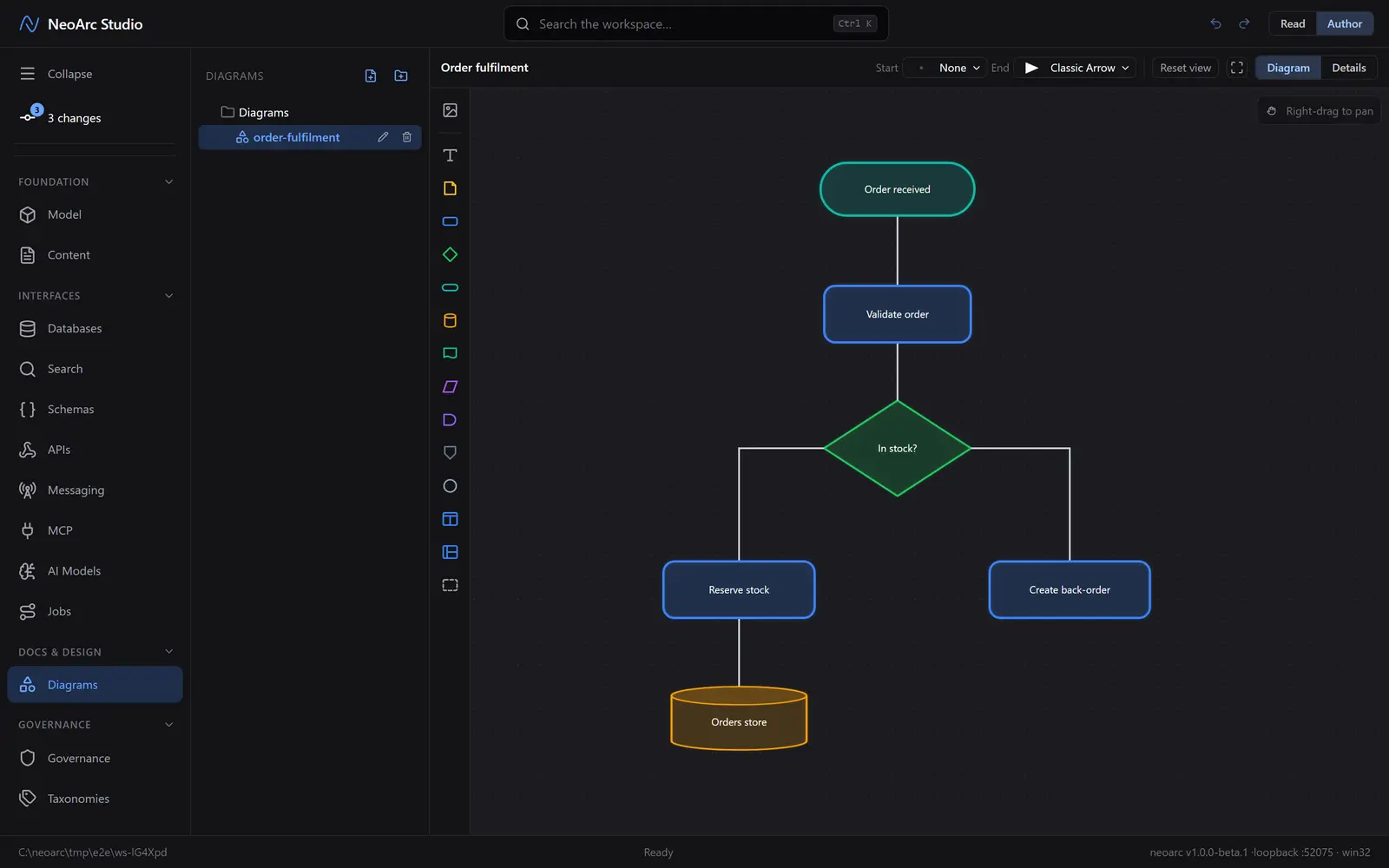
NeoArc has a full diagram editor built in, on the same diagram engine that renders the model's ERD. It is for the sketches that sit beside a design: a flow, a sequence, an architecture doodle. Shapes carry the app's dark theme, connectors route themselves, and a shape can link straight to one of your content pages or another diagram, so a diagram is part of the workspace, not a screenshot pasted in from elsewhere.
Before you start
Open Diagrams in the left-hand sidebar (the Docs & design group), and make sure the top-right toggle is on Author (in Read the canvas is view-only, with the palette and tools hidden). Create a diagram with the new-diagram (document-plus) icon at the top of the list, give it a name, and it opens on an empty canvas.
Add shapes from the palette
The palette runs down the left edge of the canvas: process, decision, terminator, database, document, and more, plus swimlanes and containers (hover a palette icon for its name). Click a shape to drop it in view, or drag it onto the canvas to place it exactly. Double-click a shape to type its label. To join two shapes, hover near the edge of one until a connection point appears, then drag from it onto the other; the connector routes itself and re-routes as you move things.
Connect and style
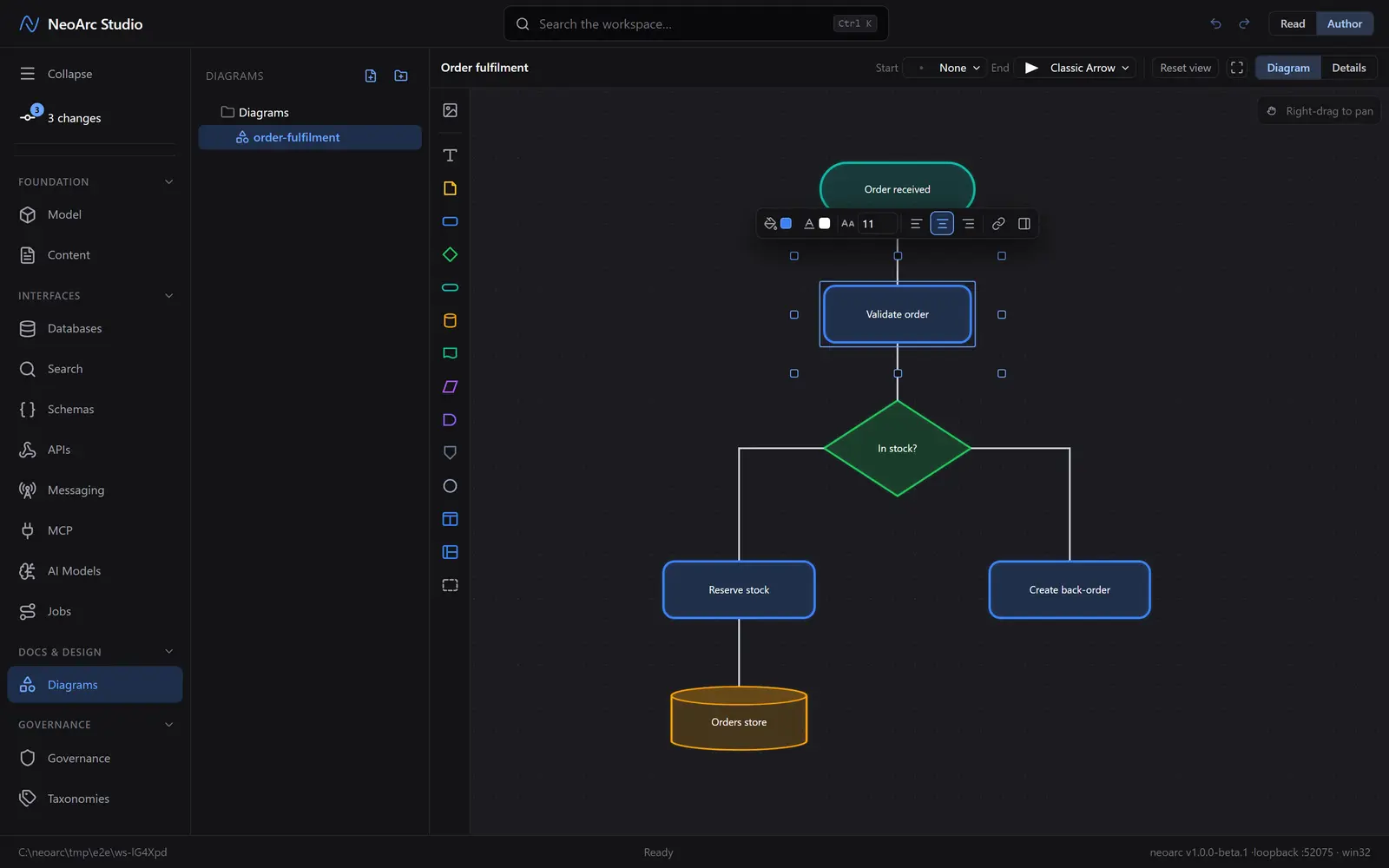
Select a shape and a floating toolbar appears above it: fill colour, text colour, text size, and alignment. Right-click a connector for its path (straight, orthogonal, curved), line style, and end markers. Everything autosaves as you go, so there is no save button to hunt for.
Link a shape to a doc
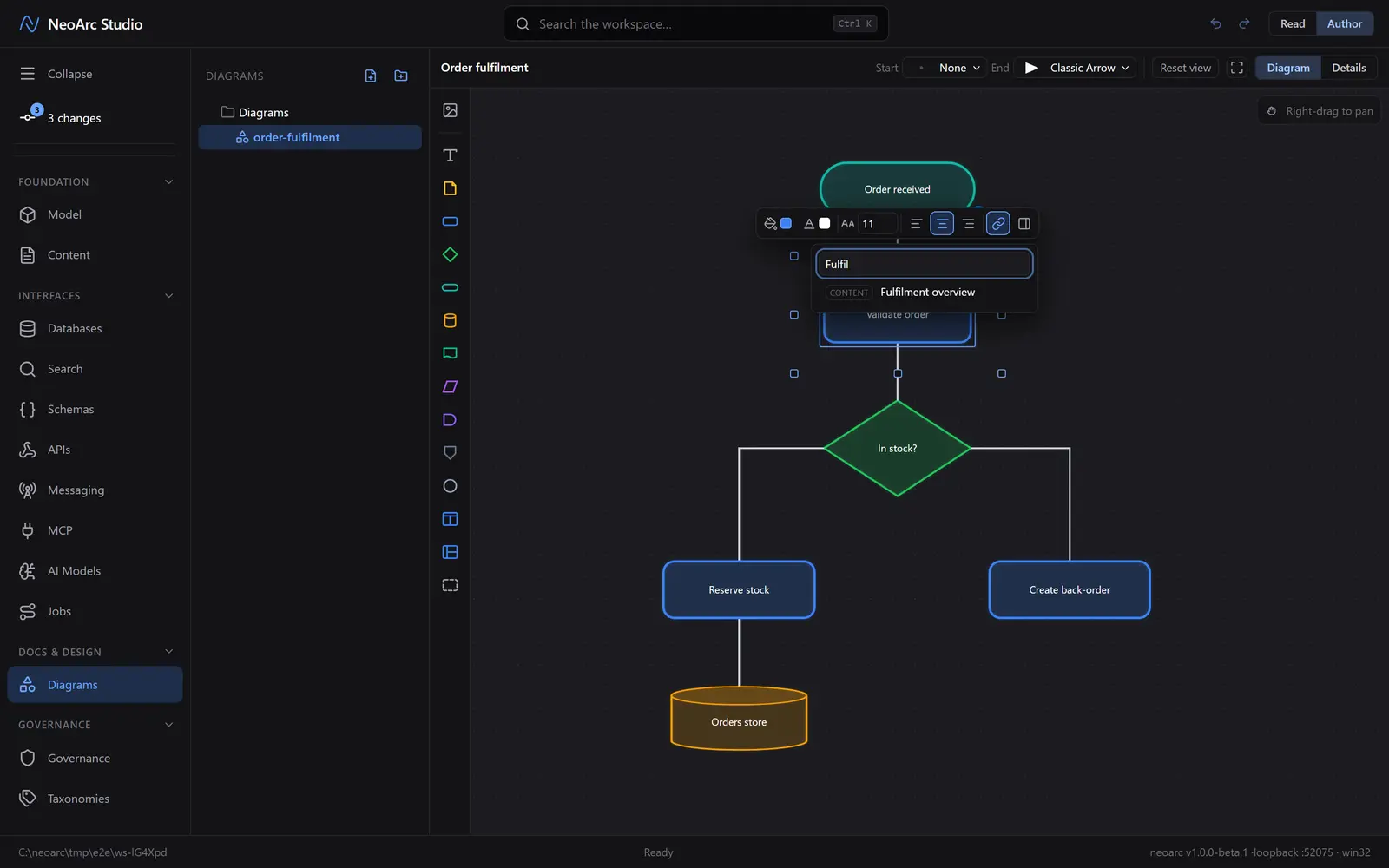
With a shape selected, click the link (chain) icon in its floating toolbar (**Link or bind this shape**) and pick a target: a content page or another diagram. From then on the shape is a doorway: click it to jump straight to what it stands for.
What next
- Group a flow into lanes with a Swimlane, or box a region with a Container, both in the palette.
- Drag a marquee across empty canvas to select several shapes at once, then move or delete them together.
- Embed a finished diagram inside a content page (see [Content and docs](../../05-content-and-docs)); it stays live and follows its links.
- To bind a block to a real database or API rather than just link to a doc, you want a process: see [Map a job](../02-map-a-job).