 Xtrable
Jobs are what runs in your architecture: scheduled jobs, queue and event listeners, pipelines, workflows. A job is a small flow, drawn on the diagram canvas, but with a twist that sets it apart from an ordinary diagram: its blocks bind to the databases and APIs they touch. Because a binding is a live reference into the projection it points at, a job that touches a table is not just illustrated as doing so: it is recorded as a real dependency, and it joins the architecture map as its own node.
Before you start
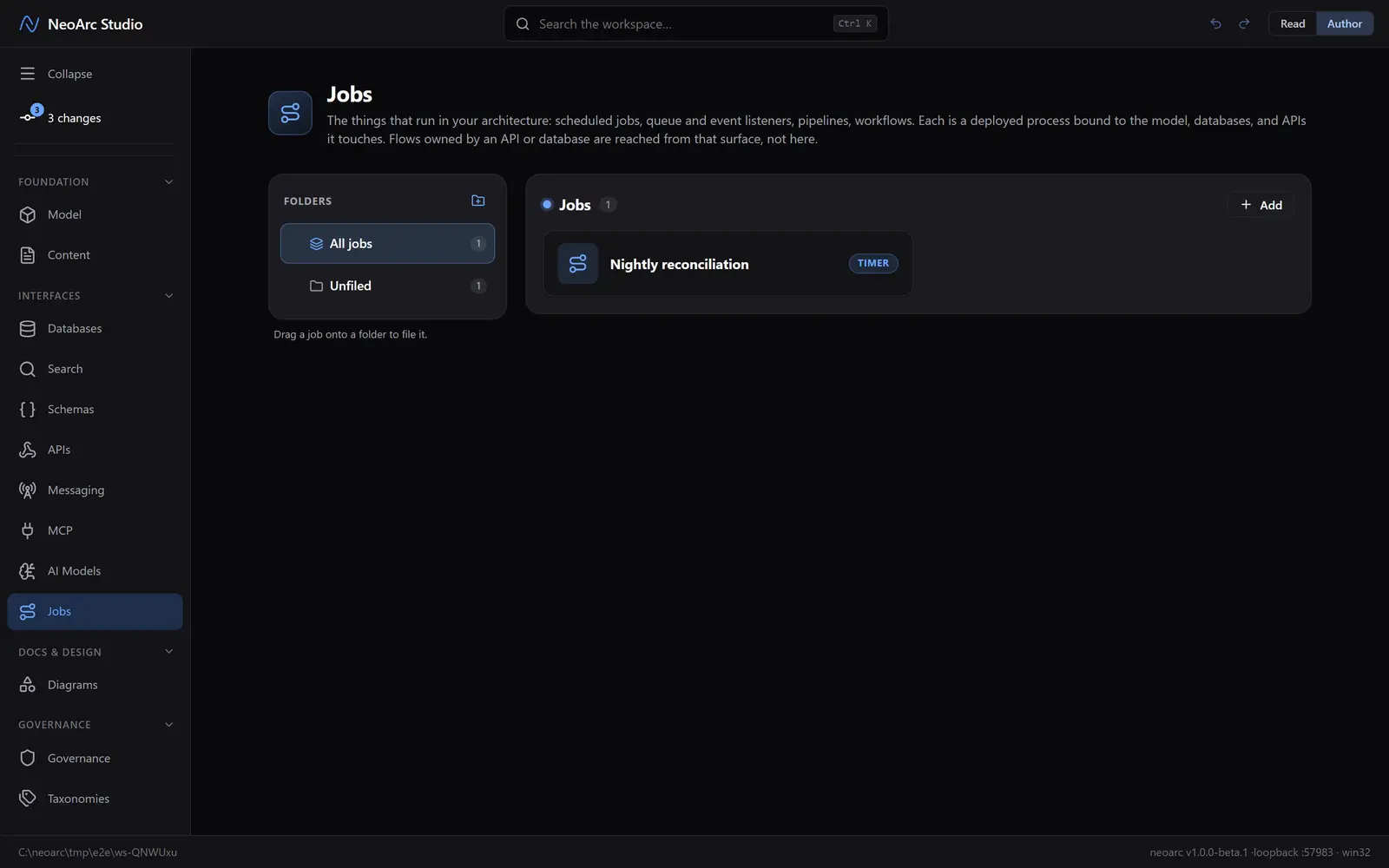
Open Jobs in the left-hand sidebar (the Interfaces group), and make sure the top-right toggle is on Author. (Flows owned by an API or a database are reached from that API or database; the Jobs screen holds the standalone, deployable ones.)
Add a job
Choose Add job (or Add in the panel header). A new job is seeded as a timer, so it counts as a deployable job, and its card carries a runtime badge (Timer, Event, Workflow, and so on) that says how it runs. Open it to start drawing.
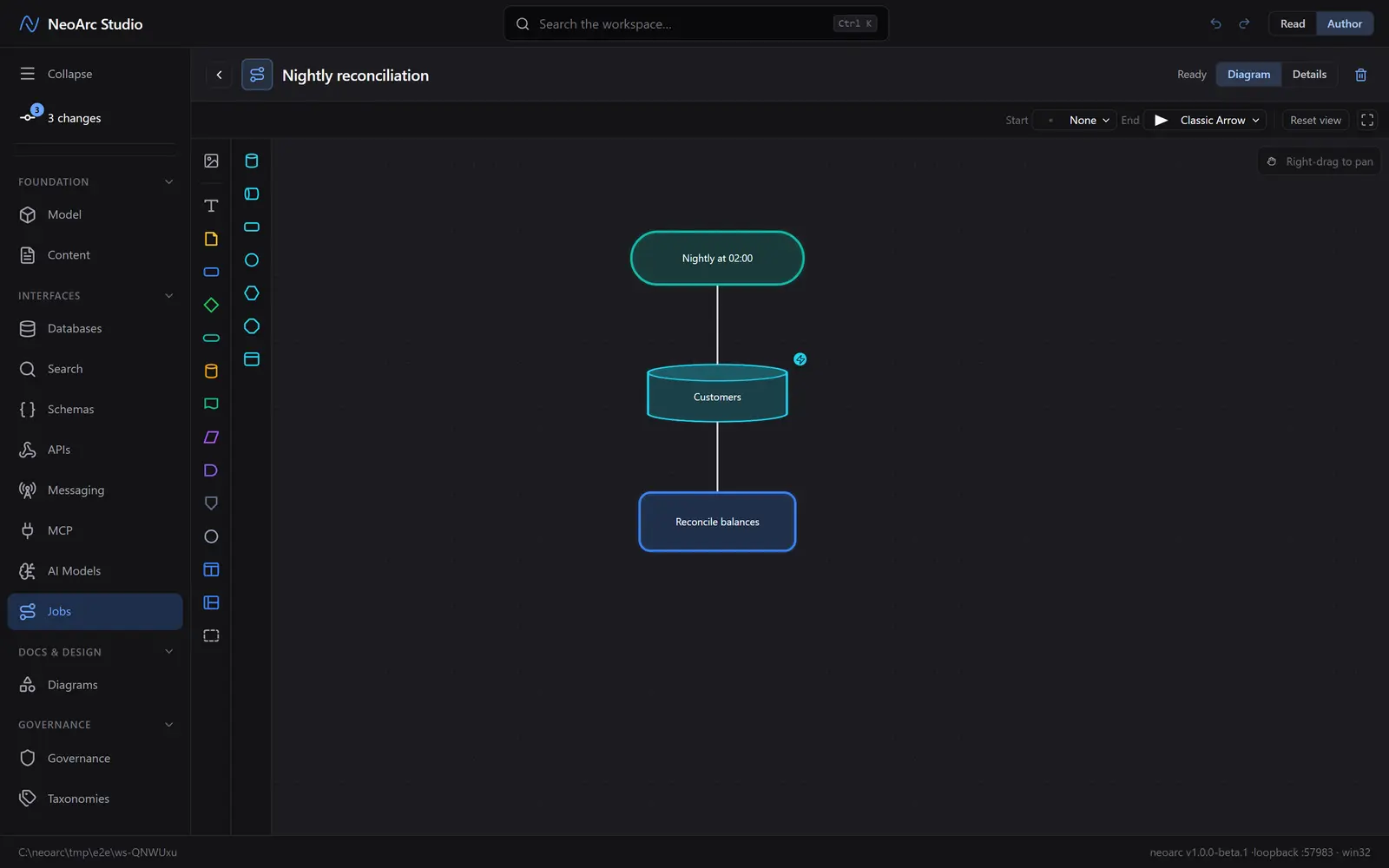
Draw the flow, bind the blocks
The canvas has two palettes down the left edge. The first is the usual shapes (a terminator for the trigger, a process for a step). The second is the binding palette: one glyph per family (database, API, messaging, search, and more). Drop a block from it and connect the flow the same way you would in any diagram, by dragging from one block's edge to the next.
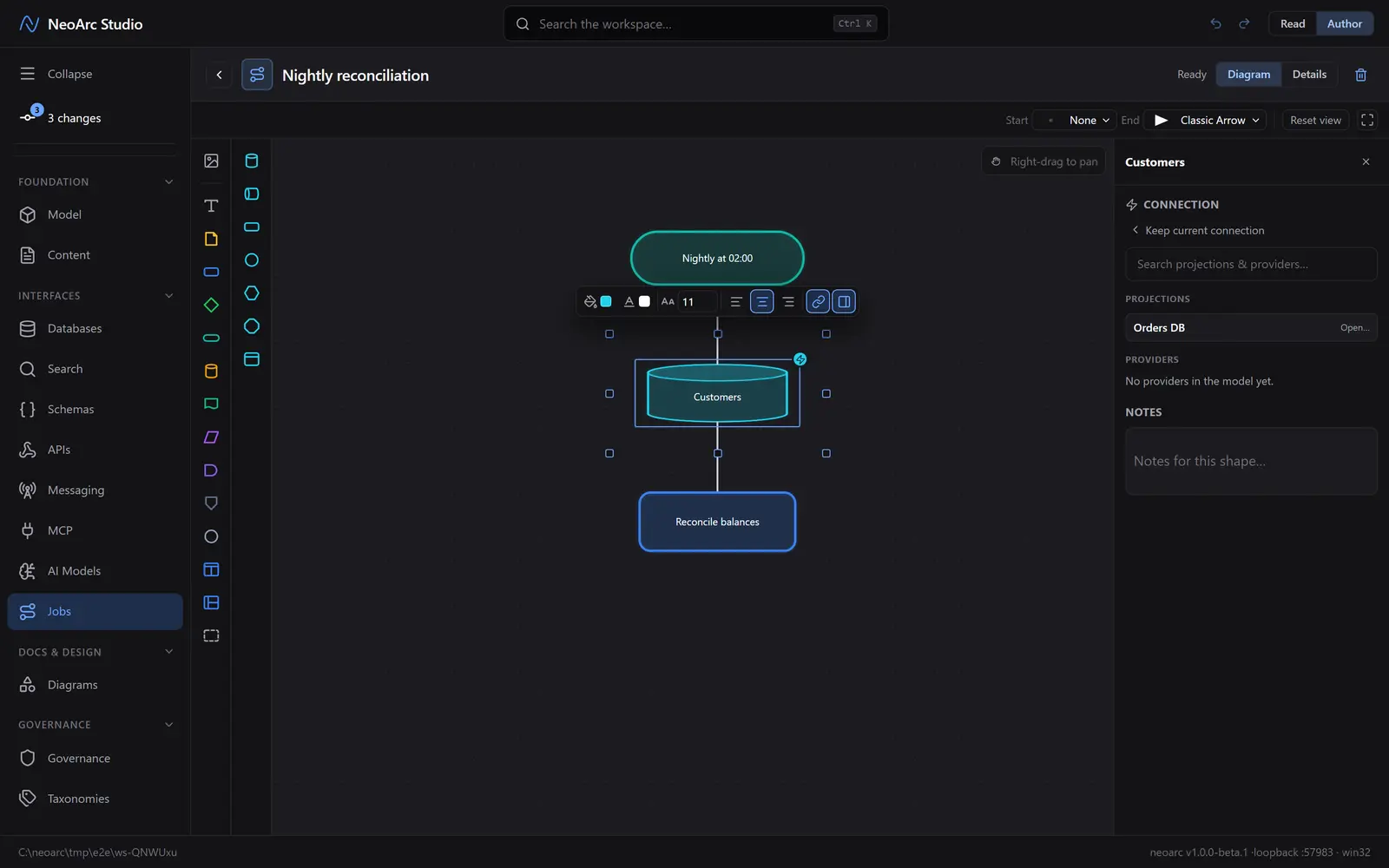
A block dropped from the binding palette starts unresolved. Select it, open its shape details (the panel icon at the right of the floating toolbar), and in the Connection section choose a source: a projection or a provider, then the specific table, endpoint, or topic. Here the Customers block is bound to the Orders DB customer table, so the block is now a doorway into that projection, not just a labelled box.
It joins the map
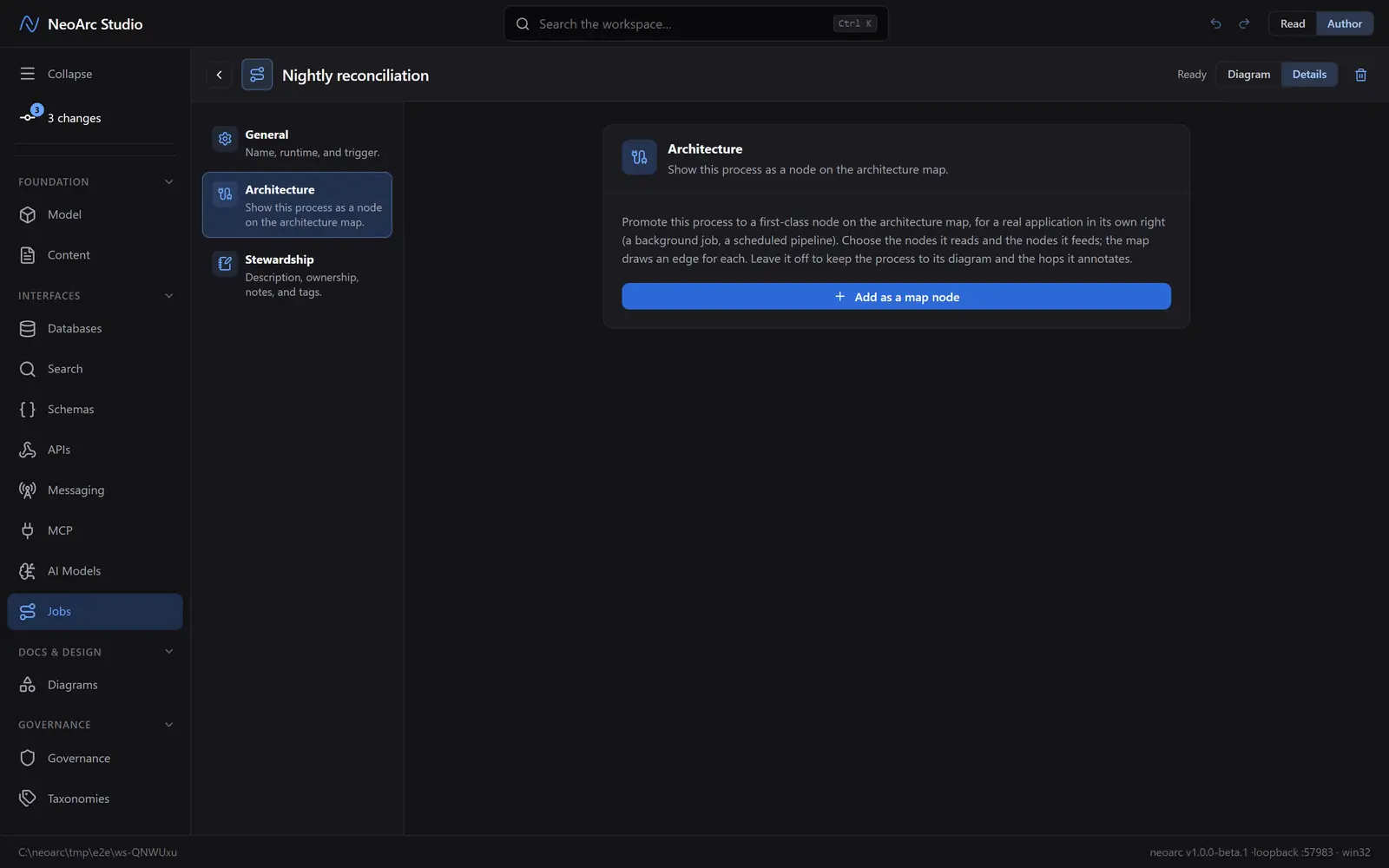
Open the job's Details tab (top-right, beside Diagram) and choose the Architecture section. Add as a map node promotes the job onto the architecture map, wired to the nodes it reads and feeds. Its bound blocks seed those edges, and you can adjust them.
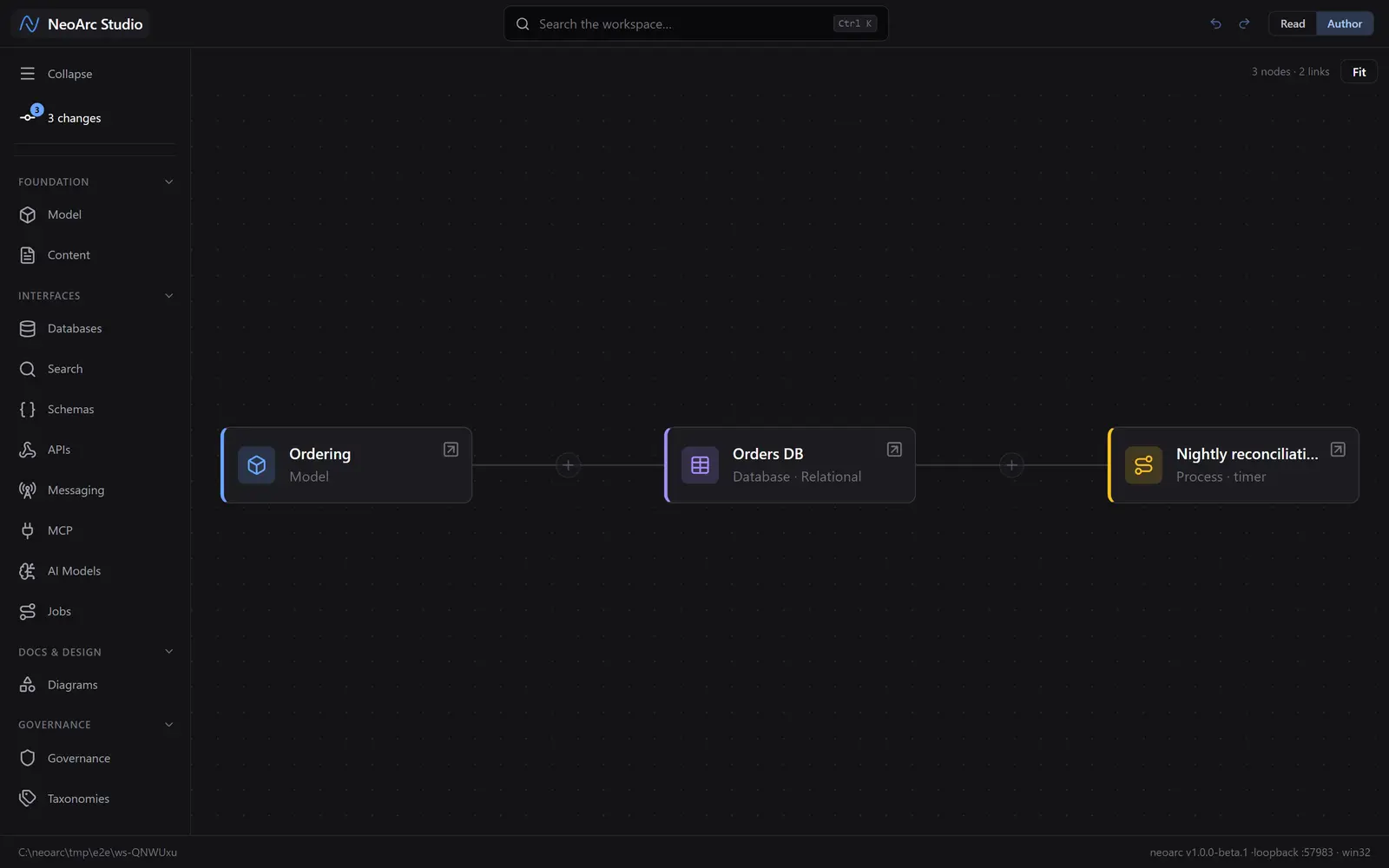
Open the architecture map from the NeoArc Studio home (top-left). The job now sits there as its own node, alongside the model and databases it depends on.
What next
- Bind blocks to more than databases: an API endpoint, a search index, or a messaging topic all work the same way.
- A bound block is a two-way link. Open the database's Processes panel to see every flow that touches it.
- Keep sketches that bind nothing in [Diagrams](../01-draw-a-diagram); a flow earns its place on the Jobs screen once it is deployable and bound.