 Xtrable
A search index is a projection like the others, with one twist: it denormalises a store (your database) into a single document and adds the per-field layer a query engine needs. Each field carries attributes (searchable, retrievable, filterable, sortable, facetable) and analysers, resolved through the engine you pick. The source is usually a database table, not the abstract model. Mirror a table in and every field keeps a wire back to the column it came from. It takes about a minute.
Before you start
You need a model projected onto a database, from [Project onto a database](../../01-foundations/03-project-onto-a-database). Here we use a Catalog model with a Product entity (title, price, sku) mirrored onto a Catalog DB, where the entity becomes a product table.
Add a search engine
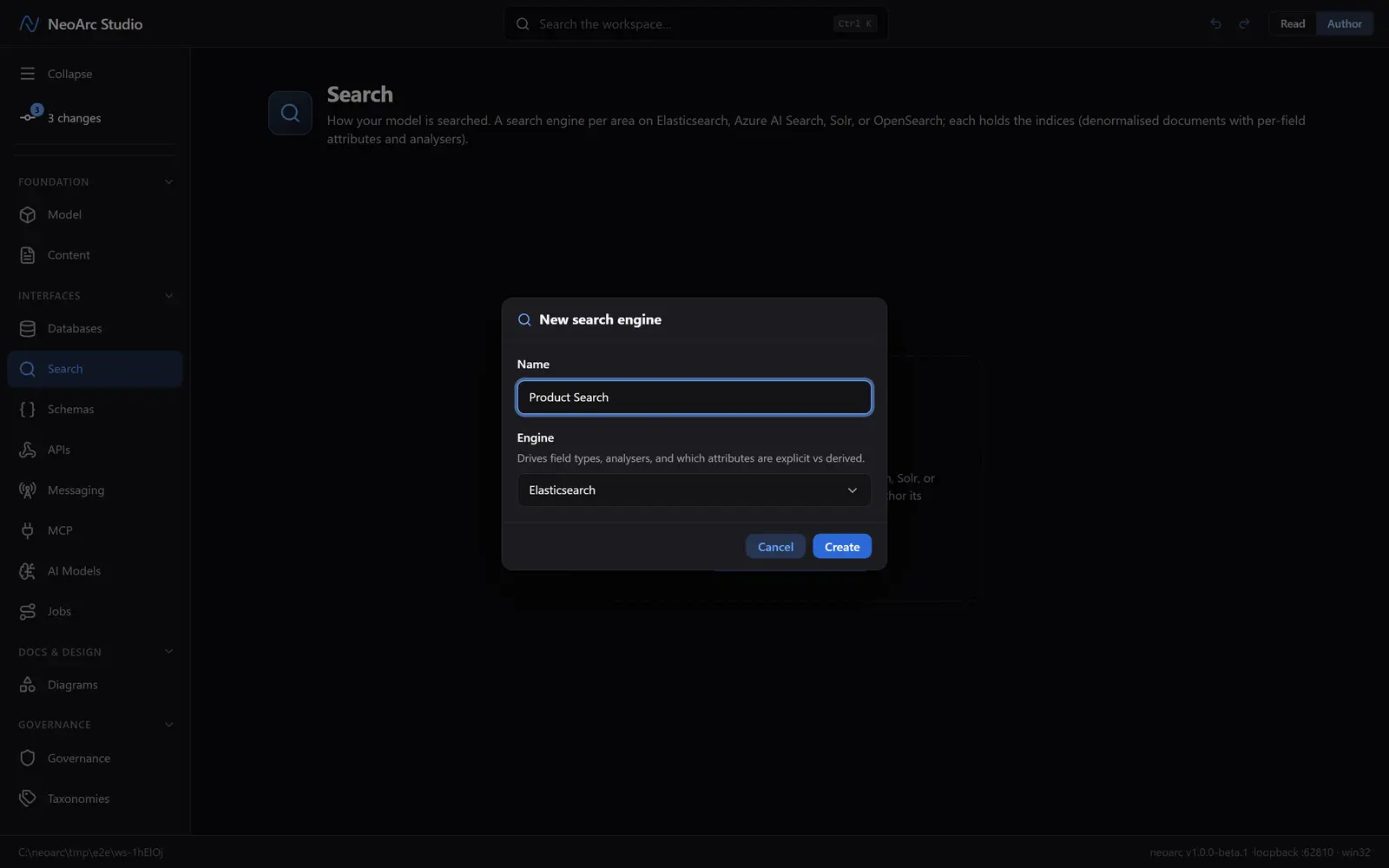
Open Search in the left sidebar (under Interfaces), and make sure the top-right toggle is on Author. Click Add search engine and name it Product Search and pick an engine, say Elasticsearch. The engine drives the field types, the analysers, and which attributes you set explicitly versus which it derives for you. One engine holds several indices. Click Create.
Add an index
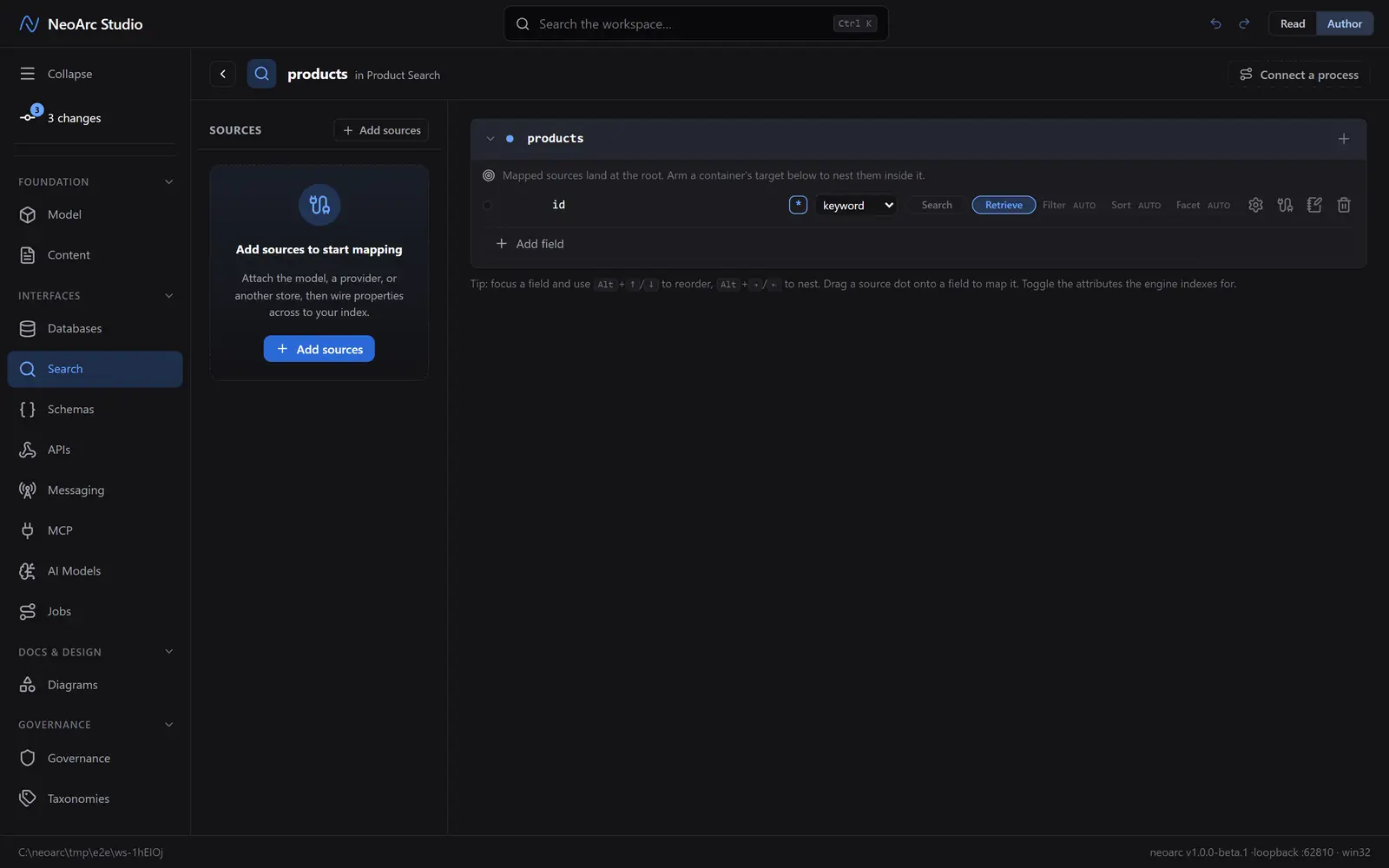
The engine opens ready for its first index. Click Add your first index and name it products. An index is one denormalised document the engine indexes. It starts with an id keyword field.
Point it at the database
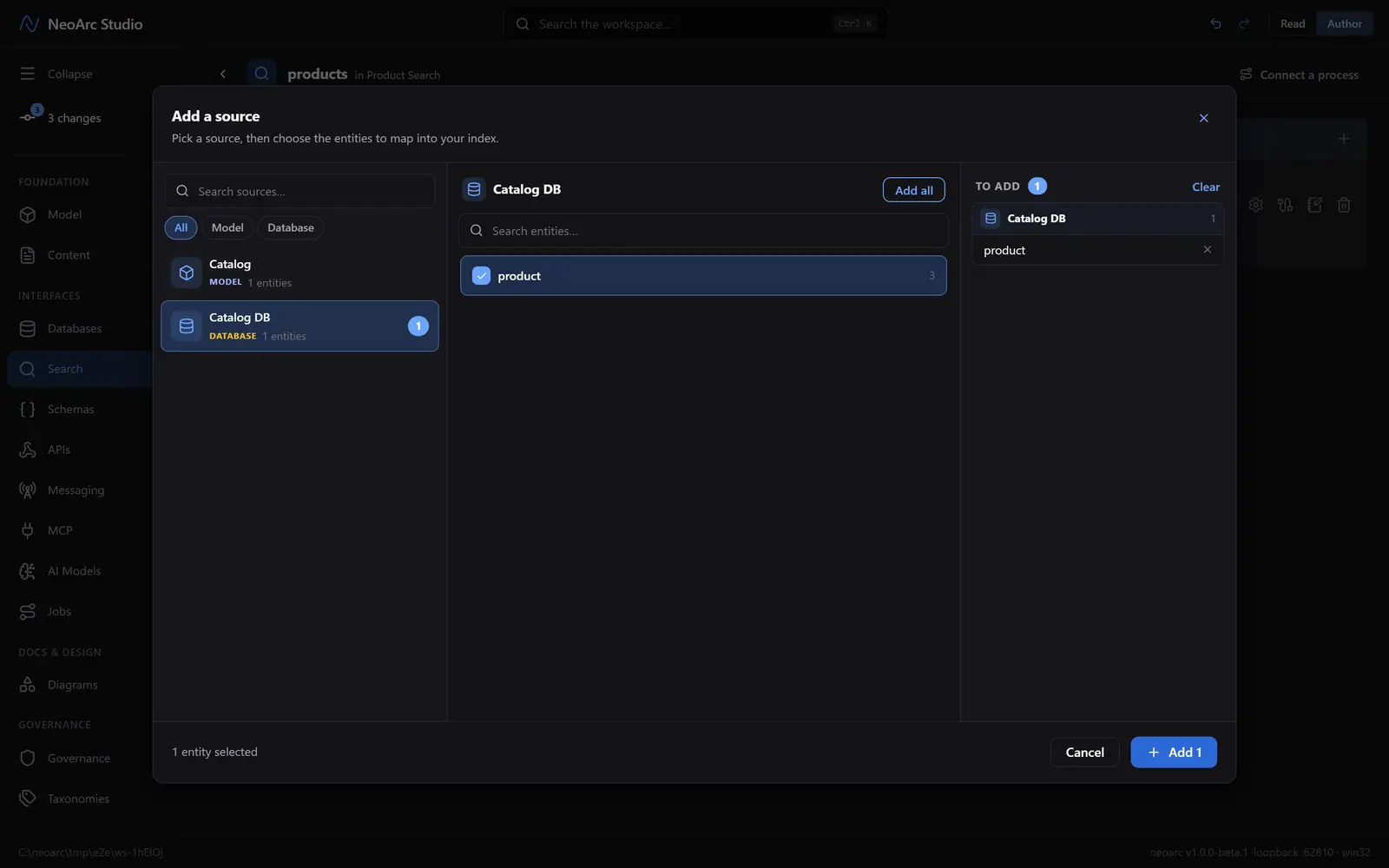
Click Add sources, then pick Catalog DB. Both the Catalog model and the Catalog DB database are offered here. Choose the database: an index reflects what a store actually holds, and its lineage still traces on to the model through the database. Tick the product table and confirm with Add 1 (the count reflects what you ticked).
Mirror the table
Your database now sits in the sources list on the left. On its product card, click Mirror. Every column lands as a field, wired to its column and typed for search: your strings become text, the key stays keyword.
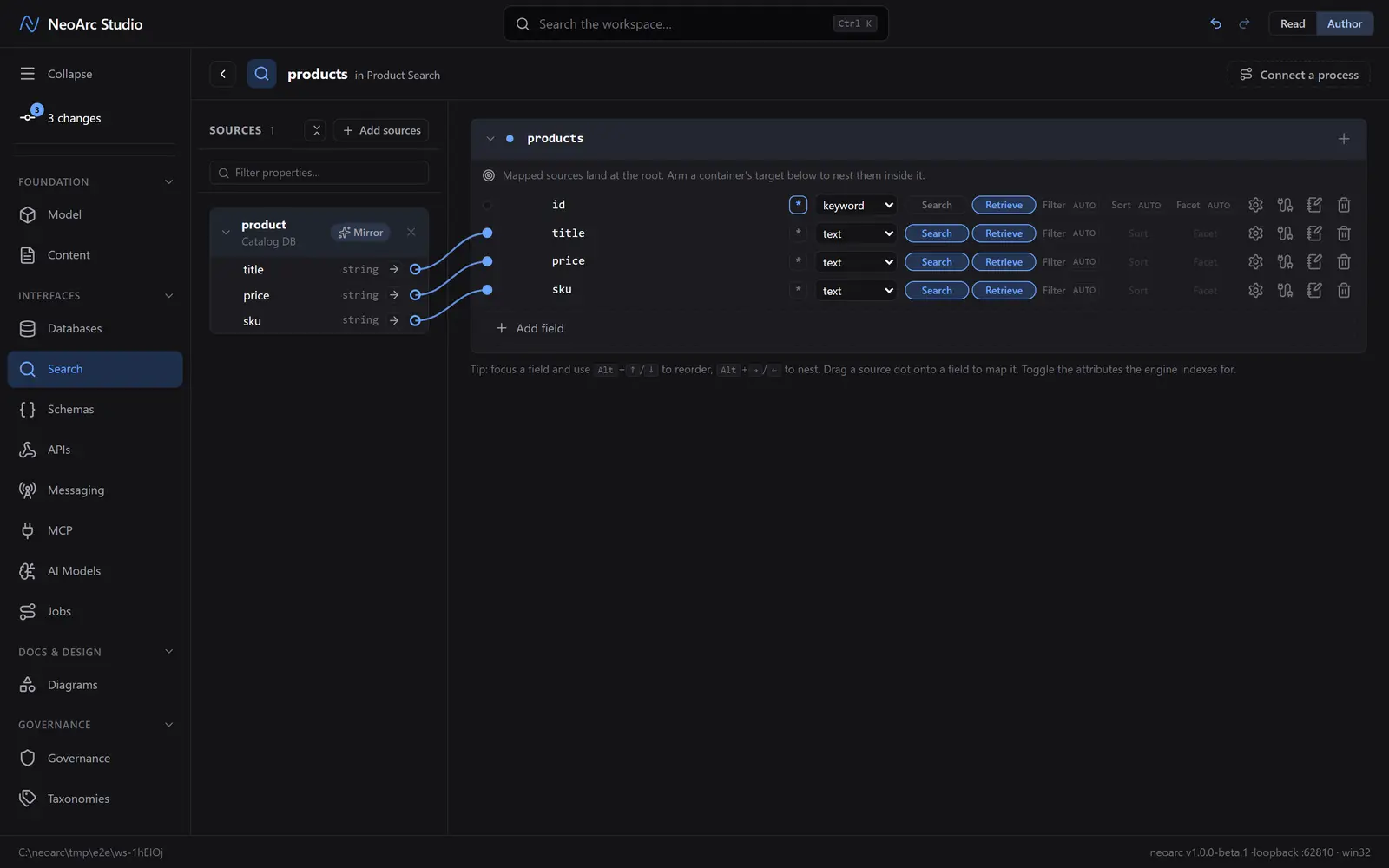
Now tune each field. The strip on the right is the search layer: toggle Search, Retrieve, Filter, Sort, and Facet per field. Attributes marked AUTO are the ones Elasticsearch derives from the field type; a different engine exposes a different set.
Read the index
Switch the top-right Read/Author toggle to Read. You get the denormalised shape, each field with the attributes the engine will index it for, and an example document to sanity-check the result.
What next
- Change text to keyword on a field you only filter or sort on, and watch the attribute strip follow the engine's rules.
- Open the analysers on a text field to set an index-time and query-time analyser.
- Nest a field into an object or array for a richer document, or reference another index.
- Swap the engine on a similar index (Azure AI Search, OpenSearch, Apache Solr) and compare which attributes it makes explicit.